Posts

Google Chrome Shortcuts

Control + Shift + N opens an 'incognito' window - sites you view in this window won't appear in your history and cookies served by sites in this window will be deleted when the window is closed.  You can open a link in an incognito window by right-clicking the link and selecting Open link in incognito window.  Alt + Home loads your Google Chrome home page, with thumbnails of your most visited sites shown in the active tabbed window.  Control + T opens a new tab. You can drag tabs around to change their order or drag a tab out of the window into its own window.  Control + Shift + T opens your most recently closed tab. Press the key combination again to open the tab closed before that one. Google Chrome remembers the last 10 tabs you've closed.  Jump to different open tabs using Control + 1, Control + 2, Control + 3, etc. Control + 9 takes you to the last tab.  Control + Tab lets you cycle through your open tabs in order.  Control + Shift + Tab...

BIOS Access Key For Every Model

Image
How to access to BIOS - Thinkpad Older ThinkPad systems BIOS Entry Key for HP and DELL BIOS Entry Key for Acer , Lenovo  and  Toshiba Other BIOS Suppliers and BIOS entry key

Resetting BIOS from CMD

This method works only if you have access to the system when its turned on because this method requires MS DOS. Open Command Prompt from Programs menu and provide following commands one bye one: debug o 70 2E o 71 FF quit NOTE: The first character in the above commands is English alphabet "o" and not the number 0. After providing the above commands, restart your system and it should reset the CMOS Settings along with the BIOS password. If you are curious to know how it works? then let me explain the above commands: In this method we are using the Debug tool of MS DOS. The "o" character present at first in these commands, outputs the values to IO ports. The number 70 and 71 are port numbers which are used to access CMOS memory. By providing FF value we are telling CMOS that there is an invalid checksum and it resets the CMOS settings as well as BIOS password.

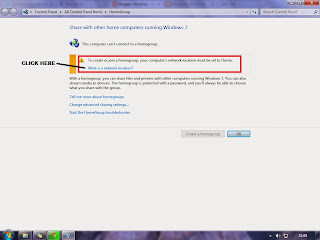
How to create HomeGroup?

Image
What's a homegroup? A homegroup is a group of PCs on a home network that can share files and printers. Using a homegroup makes sharing easier. You can share pictures, music, videos, documents, and printers with other people in your homegroup. Step 1 : Clicking the Start button,  typing homegroup in the search box, and then clicking on HomeGroup. THIS IS WHAT YOU WILL SEE FOR FIRST TIME IF UR NOT IN HOME NETWORK Step 2 :  Click on "What  is a network location" and select Home network Step 3 :  Click Create a homegroup Step 4 :   Select what you want to share and click next Then it will generate a password which will be use to connect other computer to homegroup(in same network) Step 5 :  Click on finish, and its all done  This is what you will see in network and share center

Dota 2 : Stacking Guide

Image
Neutral creeps spawn every minute at the same locations, however Neutrals will not spawn if there is already a camp there. Creep stacking is a method used to force creeps to spawn anyways by first baiting the original camp away so that the computer thinks there are no creeps in the Spawn point and makes a new camp anyway. Creeps spawn at the first 00:30 mark of the game. Creep stacking is very easy to learn, simply attack the creeps at every :53 seconds of the game and you will be able to stack them, simply attack the neutrals and then run away and they will chase you, then by the time they come back to their camp there will already be another second camp there. You don't have to use your hero to stack the camps, anything will do. You can also stack ancient in same way NOTE: Before stacking ancient deward the place  and never run toward river 

Few useful Keys

The full list of keyboard shortcuts includes Alt + left click   :  Property window(select a icon or file ) Win+Home:   Clear all but the active window. Win+Space:   All windows become transparent so you can see through to the desktop. Win+Up arrow: Maximize the active window. Shift+Win+Up arrow: Maximize the active window vertically. Win+Down arrow: Minimize the window/Restore the window if it's maximized. Win+Left/Right arrows: Dock the window to each side of the monitor. Shift+Win+Left/Right arrows: Move the window to the monitor on the left or right. Ctrl+Shift+N: Creates a new folder in Windows Explorer. Alt+Up: Goes up a folder level in Windows Explorer. Alt+P: Toggles the preview pane in Windows Explorer. Shift+Right-Click on a file : Adds Copy as Path, which copies the path of a file to the clipboard. Shift+Right-Click on a file: Adds extra hidden items to the Send To menu. Shift+Right-Click on a folder: Adds Command Prompt Here, ...

How To Display Administrative Tools on the Windows 7 Start Menu

Image
Step 1 : Right-click Start, and then click Properties.The Taskbar And Start Menu Properties dialog box is displayed with the Start Menu tab selected by default. Step 2 : Click Customize.Scroll down the list until you can see the System Administrative Tools heading.  Step 3: At this point, you have two options: If you want to display the Administrative Tools menu as a submenu of the All Programs menu, select Display On The All Programs Menu. If you want to display the Administrative Tools menu directly on the Start menu and as a submenu of the All Programs menu, select Display On The All Programs Menu And The Start Menu. Step 4 : Click OK twice.